Expert Studio
Expert Studio.
Tooltip tour of controls, the creative canvas with reference uploads, and a layout you can adjust.
Expert Studio is full creative control after (or instead of) the guided path. Use it when you want every tray and the canvas in one workspace.
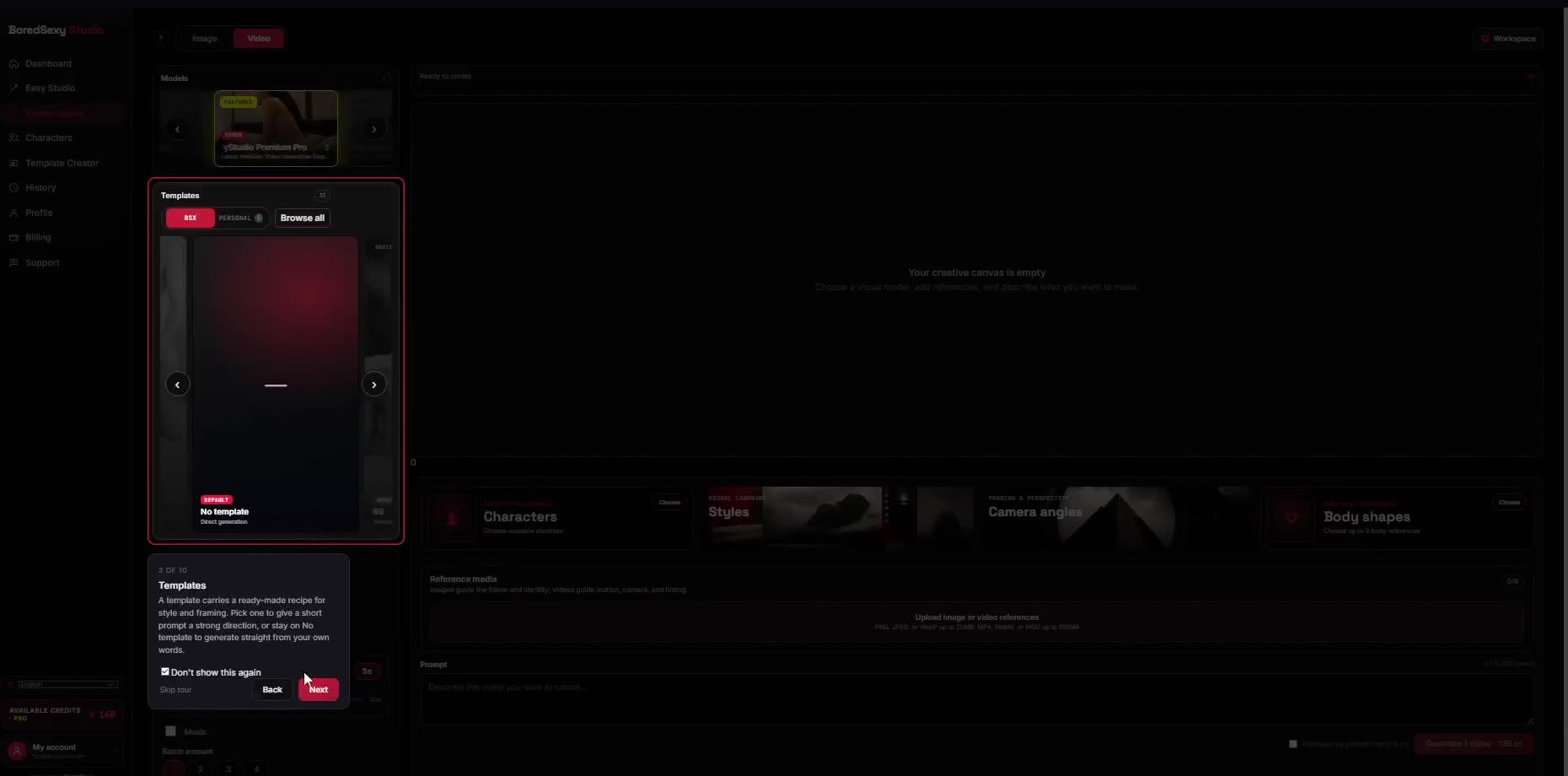
What you'll see
- Image / Video toggle
- Engine / models
- Templates
- Style & camera trays: Characters / Styles / Camera / Body shapes
- Prompt box; aspect / length; Generate
- Canvas: empty until you choose a model, add references, and describe what you want
- Reference uploads sit with the prompt; results land on the canvas and in History
- Workspace button (top right) to adjust the layout
Do this
- Follow the tooltip tour of the control rail.
- Choose Image or Video, pick an engine, and open Templates or style trays as needed.
- Add references with the prompt, set aspect / length, then click Generate.
ToggleImage / Video
EngineDropdown
TemplatesPanel
Style & cameraCharacters · Styles · Camera · Body shapes
PromptBox
FrameAspect / length
CTAGenerate
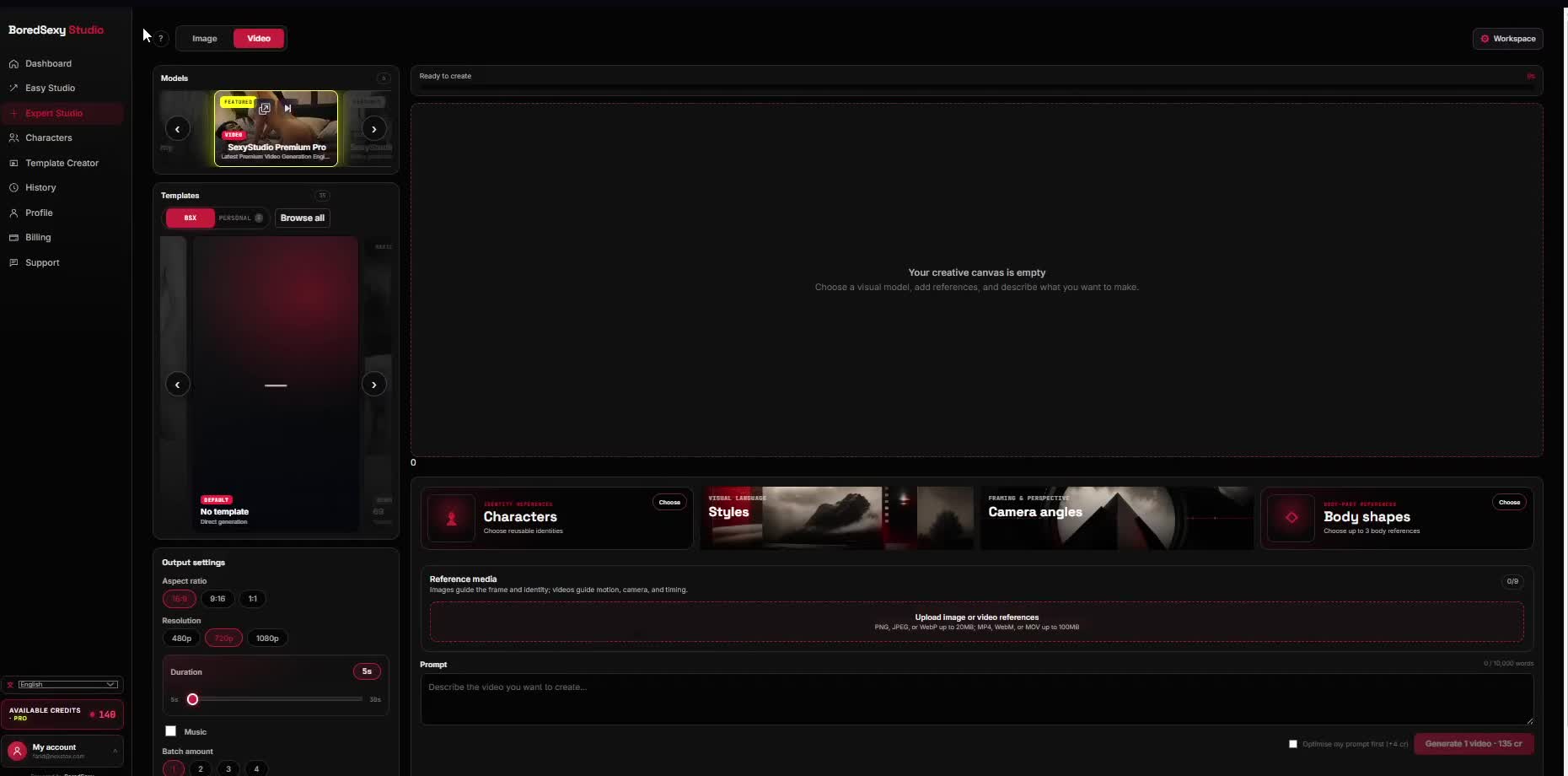
CanvasCreative workspace
UploadsReference images
Customize your workspace
The Expert Studio layout is adjustable. Click Workspace at the top right to open the workspace bar.
- Compact, Comfortable, or Large sets how dense the workspace is.
- Left or Right picks which side the panel sits on.
- Customize layout turns on dock layout mode.

DensityCompact · Comfortable · Large
Panel sideLeft · Right
LayoutCustomize layout
In dock layout mode the studio marks out a Left dock and a Bottom dock, each labelled "Drop blocks here". Every block gets a Drag to reorder handle, so you can drag blocks like the Characters, Styles, Camera angles, and Body shapes trays or Reference images to where you want them.
While you edit, the bar changes to Save layout, Dock layout enabled, and Reset.

SaveSave layout
StatusDock layout enabled
ResetReset
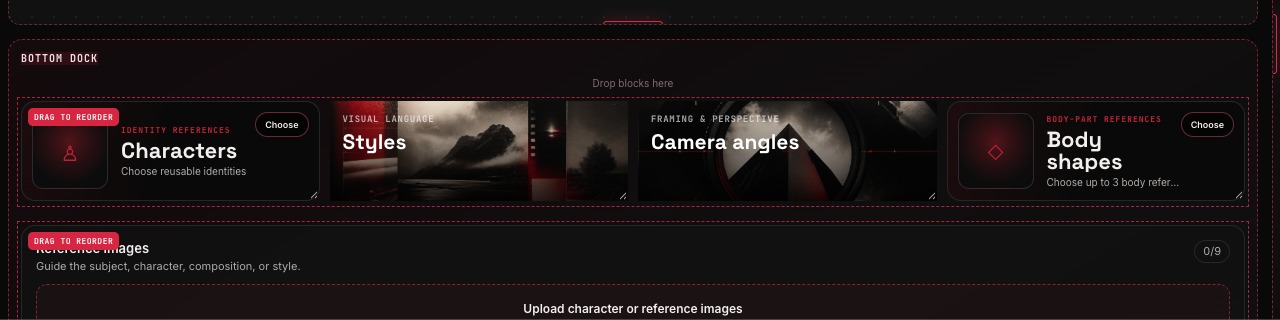
DockBottom dock · Drop blocks here
HandleDrag to reorder